
1. Enabling budgets
Budgets are part of the Business Customers plugin and need to be enabled in the admin system:
-
Navigate to Plugins > Business Customers and open the Settings tab.
-
Toggle Enable Budgets in the Global Settings section to turn on the feature .
-
Click Save.
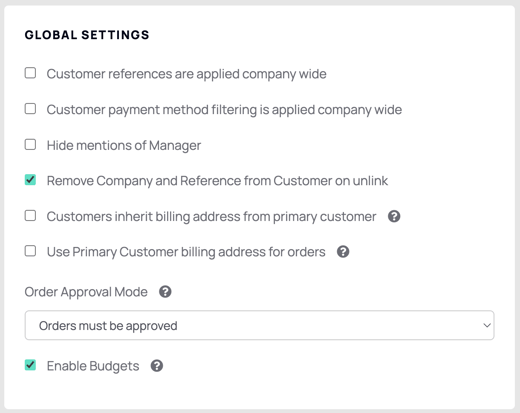
Once enabled, a Budgets section appears on company, role and user pages. Users with the Manage Users permission can configure budgets from the My Account area in the shop for their own company
2. Configuring a company‑level budget
With budgets enabled, users with the Manage Users permission can set an overall spending limit for their company:
-
In the My Account area of your shop, open the Company section.
-
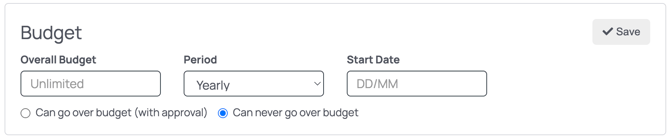
In the Budgets section enter an Overall Budget value. Leave the field blank for unlimited spending, or set it to zero (£0) to prevent any orders.
-
Select a Period – Monthly, Quarterly or Yearly. When Yearly is selected, specify a Start Date in day/month format.
-
Choose whether users can exceed the budget:
-
Can go over budget (with approval) – allows orders that exceed the budget but triggers an order approval. A warning will appear on checkout and the approval email will include a budget breakdown.
-
Can never go over budget – prevents checkout when the budget is exceeded.
-
-
Save your changes.
When a member of your company attempts to exceed the company overall budget, the system shows a message on the last step of checkout indicating the remaining budget and blocks the order if overspending is not allowed.
3. Configuring role‑level budgets
Users with the Manage Users permission can set budgets for each role within their own company:
-
In the My Account area, select Roles and choose a role.
-
In the Budgets section enter an Overall Budget for the role and select a Period (Monthly, Quarterly or Yearly with a start date).
-
Use the Budgets by Category, Brand or SKU section to create more granular budgets (see below).
-
Click Save.
If a user with that role tries to exceed a role budget, a message appears at checkout showing the remaining budget and the order is blocked if overspend is not permitted.
4. Configuring budgets by category, brand or SKU
When editing a role, you can specify budgets for specific categories, brands or individual products. These granular budgets are defined as rules and displayed as lines in the Budgets by Category, Brand or SKU table.
To configure a rule:
-
In the Budgets by Category, Brand or SKU section, click Add to insert a new line.
-
Choose the relevant item.
-
Choose a Limit Type:
-
Spend Limit – sets a maximum currency value the role or user can spend on that category, brand or product.
-
Quantity Limit – sets a maximum number of units that can be purchased.
-
-
Enter the Allowed Total (leave blank for unlimited).
-
Select a Period (Monthly, Quarterly or Yearly) and, if required, a Start Date.
-
Add further lines as needed to create multiple budget rules.
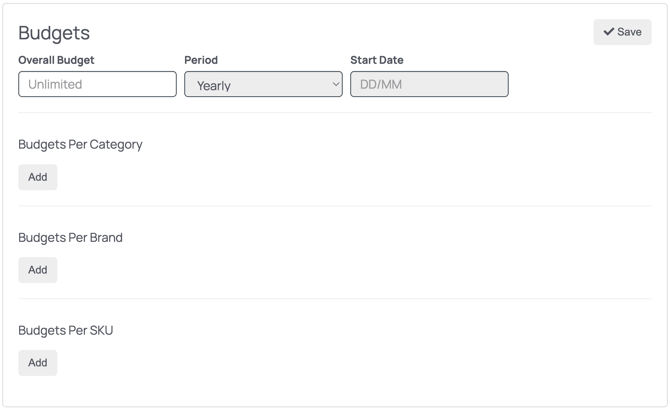
Notes: Category budgets apply to sub‑categories automatically; SKU budgets take precedence over brand and category budgets. You can create as many budget rules as needed by adding additional lines.
5. Overriding a user’s budget
To customise budgets for an individual user:
-
Open the user’s record from the Users section in the My Account area.
-
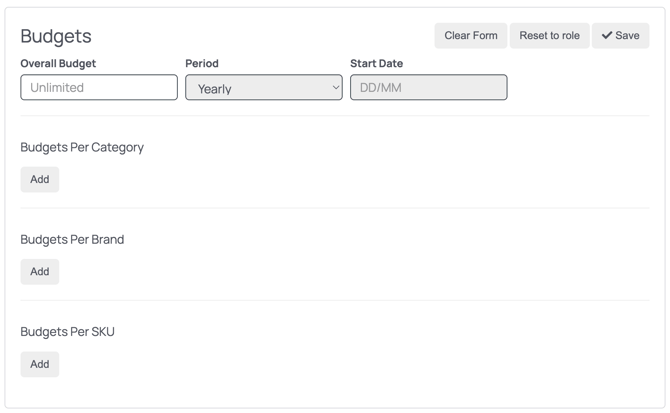
In the Budgets section, click Override. A warning explains that this will remove the role‑based budgets and apply custom limits for this user.

-
Enter user‑specific budgets as described above (overall, category, brand and SKU).
-
Use Reset to role to revert to the role’s budgets or Clear Form to remove all user‑specific limits.
-
Save your changes.
6. Budget exceedance and approvals
-
When a customer exceeds a budget at checkout, the system displays a breakdown explaining how the limit has been exceeded (for example, “You are over budget by £x on category X” or “You are over budget by X products on brand Y”). Budget checks are based on net amounts (after discounts, before tax) and exclude fees or delivery charges.
-
If the Can go over budget (with approval) setting is enabled, orders that exceed budgets can still be placed but will require approval. The approval email includes the budget breakdown.
-
Category budgets apply to subcategories automatically, and SKU budgets override category and brand budgets.