
Zones & Panels in Symphony Marketing gives you precise, rules-based control over the content displayed on your website. You can change messaging instantly — for example, to promote a limited-time discount or highlight seasonal offers — without editing your site layout. This article explains how the feature works and how to configure it.
What are Zones and Panels?
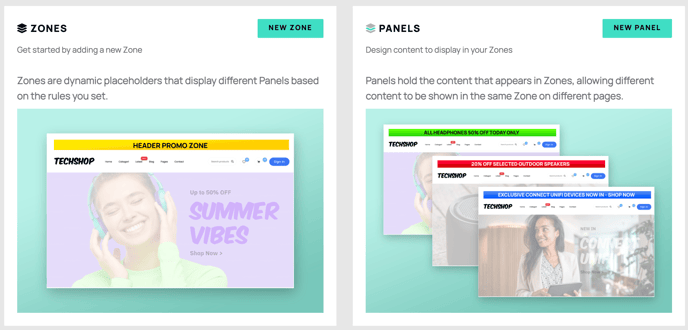
A Zone is a placeholder you add to a page layout to mark where dynamic content will appear. A Panel is the content piece you create and assign to a Zone. By setting conditions on each Panel — such as a date range or specific pages — you control exactly when and where each piece of content is displayed.
How do you set up Zones & Panels?
1. Install the Symphony Marketing Plugin
First, install the free Symphony Marketing plugin. Once installed, navigate to the Merchandising area and click on Zones to begin.
2. Understanding Zones
Let’s create our first Zone.
- Click on New Zone.
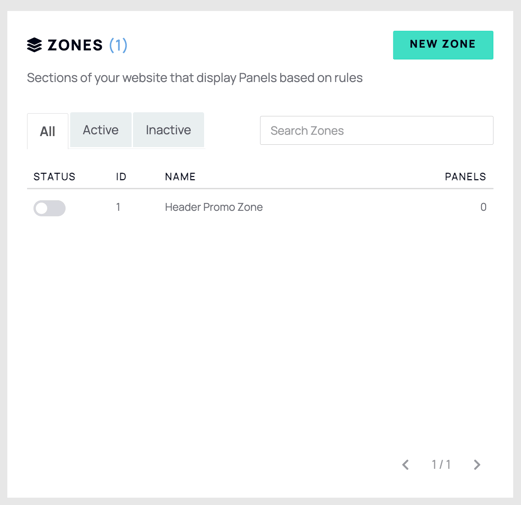
- Name your Zone. In this example, we’ll call it Header Promo Zone.

- Save the Zone and head back to your dashboard.
3. Adding Zones to Your Website
Before setting up Panels, you’ll decide where on your site this Zone will be displayed. Here’s how:
- Go to BlockLab, edit your website’s Header layout, and add the Zone block where you want it to appear (e.g. at the top of your page). When configuring the Zone block, select Header Promo Zone from the Zone selector to link it to the Zone you created in Step 2.
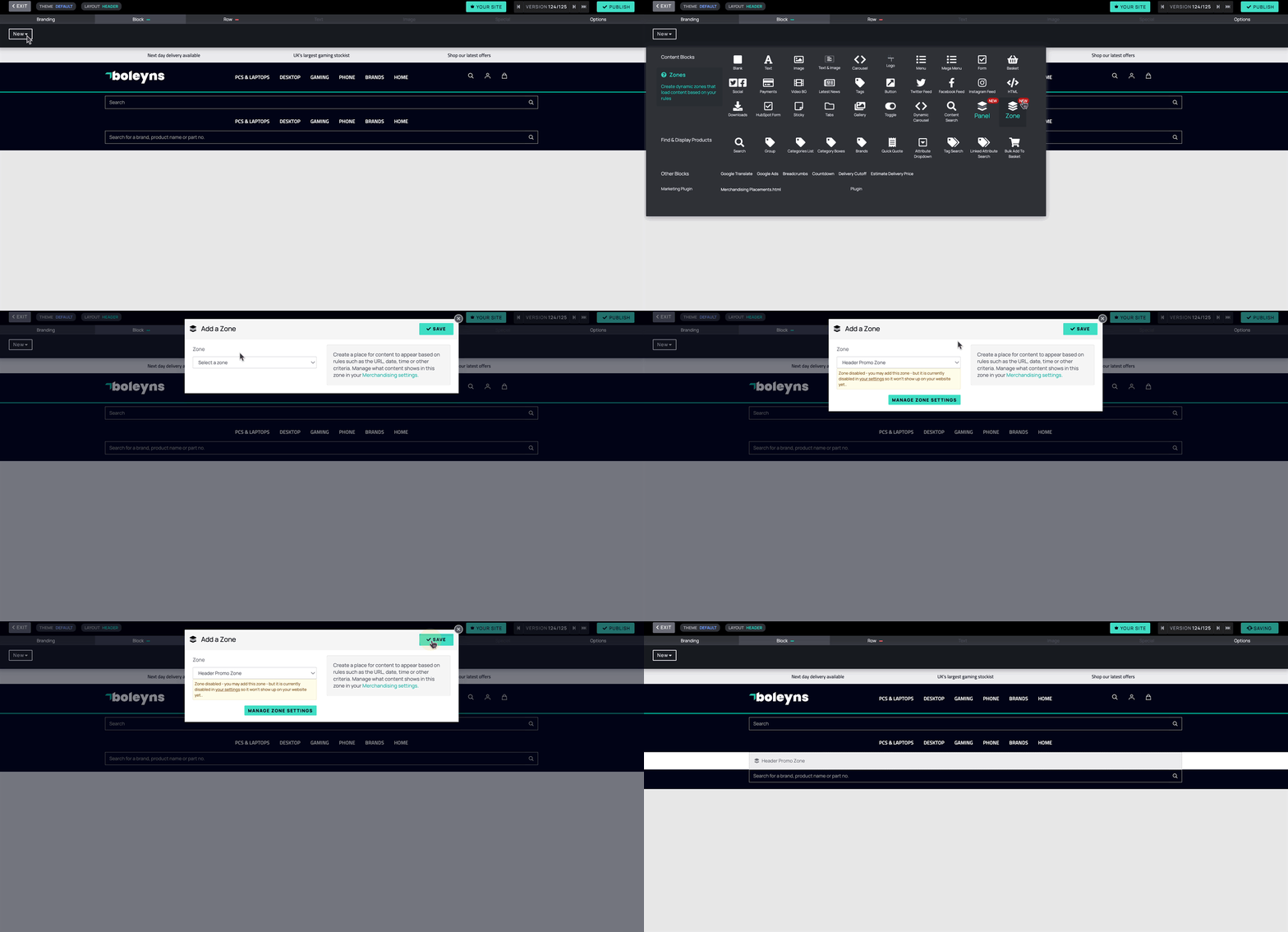
- Publish the layout. Keep in mind, at this point, the Zone will not display any content until you assign it a Panel.
4. Creating Panels
Now that your Zone is ready, it’s time to create Panels, which are the content pieces that appear within the Zones. Here's how:
For our first Panel, we’ll create a Summer Offer using BlockLab by adding a text block with the promotional message.
- First, create a New Panel.
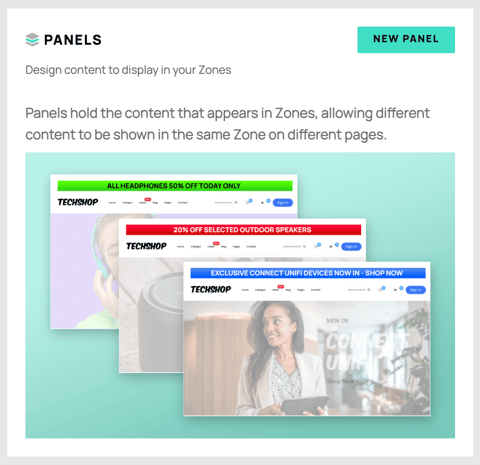
- Name and Save the new Panel.

- Click on BlockLab.

- Design your Panel.
- Publish this design. It won’t go live yet because you still need to assign it to a Zone.
5. Assigning Panels to Zones
With your Panel created, return to the Zones & Panels dashboard. You can now attach the Panels to the Zone you set up.
- Head to the Header Promo Zone.
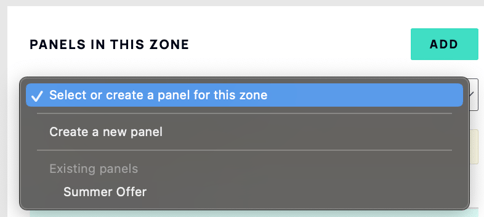
- Select the Summer Offer Panel.
- Optionally, add an expiry date and choose whether to show the Zone across the whole website or on specific pages only.
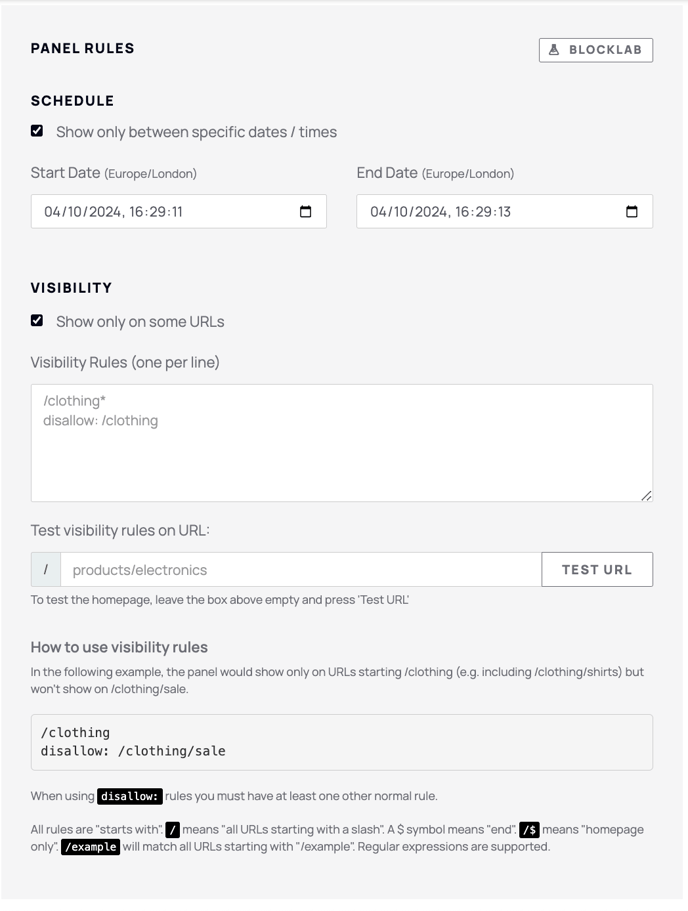
- You can assign multiple Panels to a single Zone, each with its own expiry date and display rules, so different content appears at different times or on different pages.
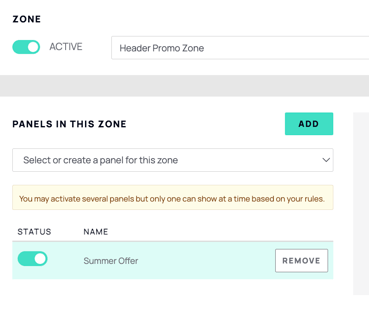
- Make sure both (The Zone and the Panel/s) are active, and click Save.
With Zones & Panels, you can efficiently manage dynamic content on your website. Whether you’re announcing a limited-time offer or setting up time-sensitive content like a countdown timer, this feature allows for maximum flexibility and control.
Feel free to experiment with different Zones and Panels to keep your site’s messaging fresh and relevant!