
Product Group Rules
At the bottom of the Product Group Rules page, you will find two sections: Include and Exclude. These sections control which products are added to or removed from the rule set.
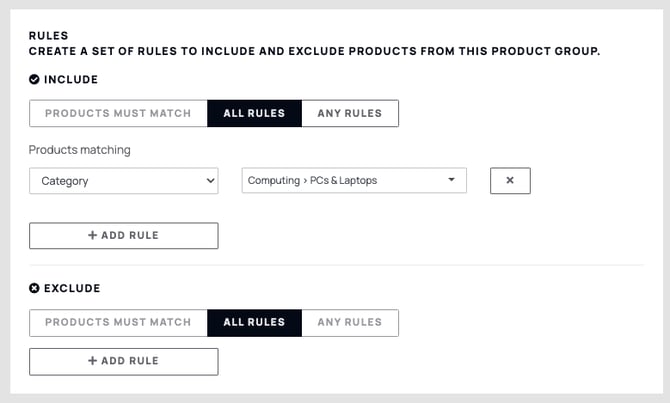
The Include section is where you specify which items should be included in this rule set, while Exclude does the opposite.
For example, to create a group containing all products with the tag Special Offer, add the rule Products Matching: Product Tag and enter 'Special Offer'. Note: The tag must be applied to the relevant products before setting up this rule.
Exclude Rules creates the opposite effect. For example, if you added ‘Special Offer’ as an Include rule, but wanted to exclude Category One products from this, you can add an Exclude Rule to avoid adding anything from Category One.
You can add multiple rules to a group. For example, to combine two product categories, click Add Rule to create an additional rule.
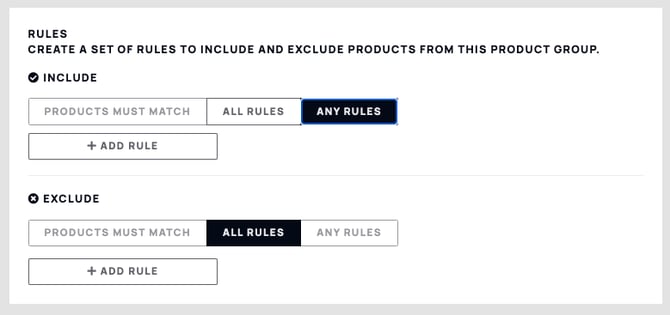
When multiple rules are added, two matching options appear: All Rules and Any Rules. All Rules acts as an AND condition — a product must match every rule to be included. Any Rules acts as an OR condition — a product only needs to match at least one rule.
If we were to say products had to be in Category One AND contain the tag ‘Special Offer’, it must match both rules to work. If it was Category One OR contain the tag ‘Special Offer’, it can be both.
Once you have added your rules, press Save at the top right hand corner of the page.
