
Introduction
The Custom Fields plugin lets you add bespoke data fields to Symphony, so you can collect the information your business needs — at checkout, in the admin, or via the API.
Installing the Custom Fields Plugin
- Go to Plugins.

- Click on See All Plugins at the top right of the page.

- Find Custom Fields.
Feature Details
Different businesses have unique requirements for collecting and storing information. The Custom Fields plugin offers a versatile solution to meet these needs:
-
Collecting Information from Customers at Checkout: Customise the checkout process by adding fields for extra details, such as a Purchase Order Number or special delivery instructions. This ensures you gather all the necessary information directly from the customer.
-
Storing Customer Identifiers for External Systems: Store identifiers (such as account numbers) against customer records in Symphony to link them with external systems. Note: reading and writing these values requires API access — they are not editable through the admin UI.
How to Use Custom Fields
Example 1: Collecting a PO Number at Checkout
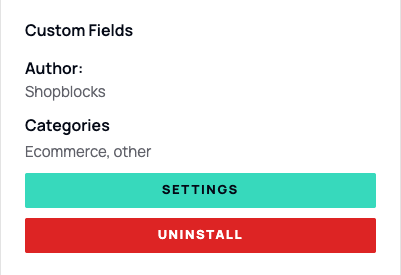
- Access Plugin Settings: After installation, navigate to the Custom Fields settings page in your Symphony admin.
- Create a New Custom Field:
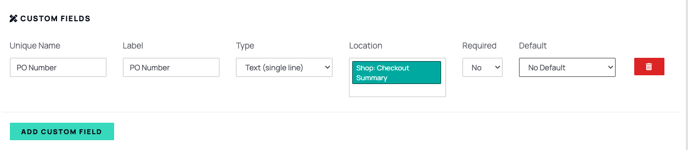
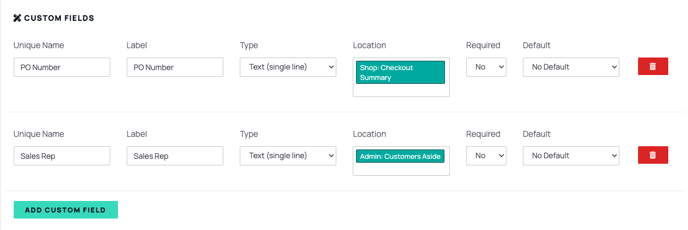
- Enter a unique name for the field (e.g., "PO Number") and set the label to match what the customer will see.
- Choose the Type (e.g., text, dropdown) and Location (select a checkout location to display the field at checkout). Tick Mandatory if customers must complete the field before placing an order.
- Save the Settings: Click Save to apply the configuration.
Verification: On the front-end website, add a product to the basket and proceed to checkout. The new PO Number field should be visible for customers to complete. In the Symphony admin system, you can view the order and see the PO Number. This data will also be accessible through webhooks or API calls for external system integration.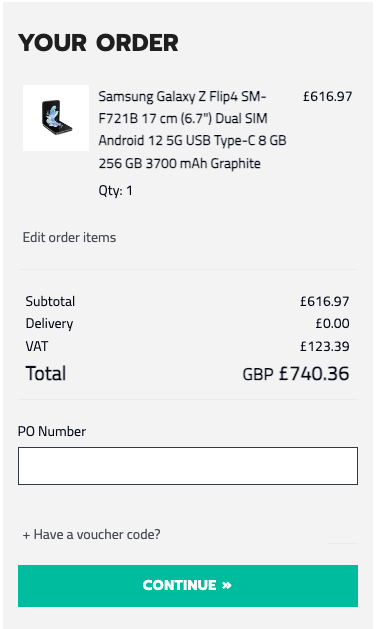
Example 2: Creating a Private Custom Field
- Add a New Field:
- Enter a name for the field (e.g., "Sales Rep"). This field is for internal use only and will not be shown to customers.
- Set the location to "Admin: Customers" so that it is visible only to admin users.
- Save the Settings: Click Save to finalise the field creation.
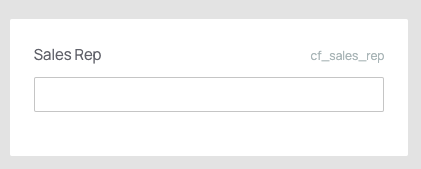
Verification: In the Customers section of the admin panel, the "Sales Rep" field will be visible for each customer.
Benefits
The Custom Fields plugin is quick to set up and adapts to a wide range of business requirements — from streamlining checkout data collection to powering integrations with external systems via webhooks and APIs. All field data is stored against orders and customer records in Symphony, making it accessible for reporting, automation, and third-party connectivity.
For further assistance or questions regarding the setup and use of Custom Fields, please contact your Symphony Customer Success Manager.