To edit the stock level of a product, follow these steps:
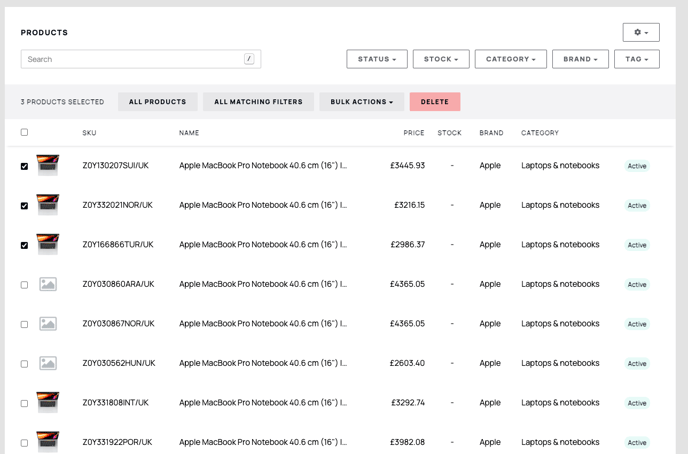
Visit your admin area and select Products from the main menu.

Find the product you would like to show as Out of Stock and click on the title to begin editing.
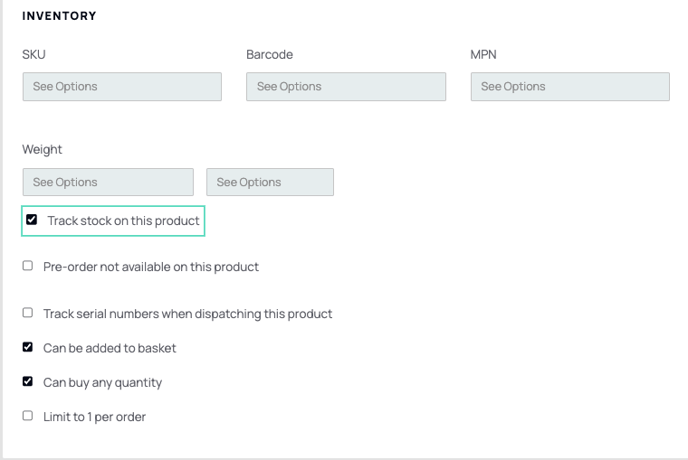
Scroll down to the pricing information, find the option labelled "Track Stock on this product" and make sure it is enabled. Only products with stock tracking enabled are affected by their stock level.
If your product is a simple product with no variants, you can edit the Stock field and save the product.
For products with variants, scroll down to "Tailor your product options" to edit the stock level for each product variant individually, or use the Bulk Edit dropdown to make quick changes across many variants in one go.
Tip: Stock levels only affect a product's visibility and purchasability when Track Stock on this product is enabled. If a product's stock level reaches zero, its availability to customers will depend on the settings configured under Products > Stock > Settings.
How do stock levels determine whether a product is visible and available to buy?
From the main menu, select Products then Stock.

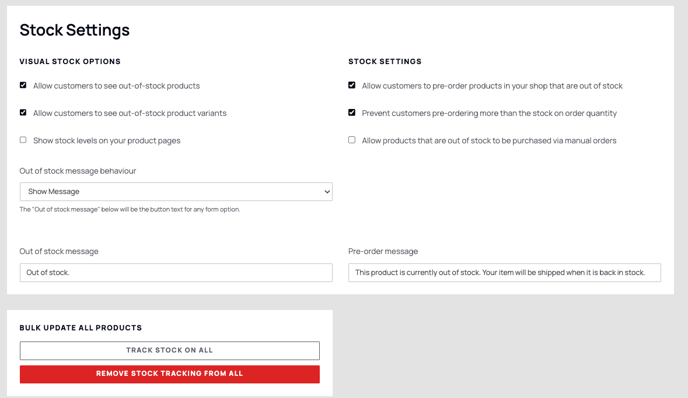
Click Settings at the top of the page and configure whether customers can see out-of-stock products, along with other stock-related settings. You can also enable or disable stock tracking across all products from here.
For more information on managing your product catalogue, see the related articles on product variants and pricing.
Note: Navigation paths and feature labels described in this article reflect the platform at the time of writing. If your admin area looks different, please contact Support to confirm the current steps.