---
title: How do I set up a Dynamic Carousel?
description: Learn how to set up a Dynamic Carousel in BlockLab, turning existing page blocks into a rotating slideshow with custom timing, arrows, and slide indicators.
---
[Skip to content](https://resources.symphonycommerce.io/knowledge-base/how-do-i-set-up-a-dynamic-carousel#main-content)
[File a Ticket](https://resources.symphonycommerce.io/knowledge-base/kb-tickets/new?hsLang=en) [Go to Customer Portal](https://clienthub.symphonycommerce.io/tickets-view?hsLang=en)
[](https://resources.symphonycommerce.io/knowledge-base?hsLang=en)
- [WHY SYMPHONY?](https://www.symphonycommerce.io/pages/why-shopblocks)
Show submenu for WHY SYMPHONY?
- [EXCLUSIVELY B2B ECOMMERCE](https://www.symphonycommerce.io/pages/why-shopblocks#exclusivelyB2B)
- [LIMITLESS INTEGRATION](https://www.symphonycommerce.io/pages/why-shopblocks#ftv)
- [FASTEST TIME TO VALUE](https://www.symphonycommerce.io/pages/why-shopblocks#limitlessIntegration)
- [SEAMLESS MIGRATION](https://www.symphonycommerce.io/pages/why-shopblocks#seamlessMigration)
- [CUSTOMER SUCCESS](https://www.symphonycommerce.io/pages/customer-success)
Show submenu for CUSTOMER SUCCESS
- [CASE STUDIES](https://www.symphonycommerce.io/pages/case-studies)
- [FEATURES](https://www.symphonycommerce.io/pages/features-in-focus)
Show submenu for FEATURES
- [NEXUS – WHITE LABEL STOREFRONT PLATFORM](https://www.symphonycommerce.io/pages/nexus)
- [INTEGRATIONS](https://www.symphonycommerce.io/pages/api-integrations-to-power-up-your-ecommerce)
- [FORTIS – SMARTER DISCOUNTS FOR BIGGER B2B DEALS](https://www.symphonycommerce.io/pages/fortis)
- [SYMPHONY PAY – TRUSTED PAYMENT OPTIONS FOR MODERN B2B COMMERCE](https://www.symphonycommerce.io/pages/symphony-pay)
- [PRICING](https://www.symphonycommerce.io/pages/pricing)
- [PARTNERSHIPS](https://www.symphonycommerce.io/pages/ensemble)
- [INSIGHTS HUB](https://resources.symphonycommerce.io/blog)
Open main navigation
Close main navigation
- [WHY SYMPHONY?](https://www.symphonycommerce.io/pages/why-shopblocks)
Show submenu for WHY SYMPHONY?
- [EXCLUSIVELY B2B ECOMMERCE](https://www.symphonycommerce.io/pages/why-shopblocks#exclusivelyB2B)
- [LIMITLESS INTEGRATION](https://www.symphonycommerce.io/pages/why-shopblocks#ftv)
- [FASTEST TIME TO VALUE](https://www.symphonycommerce.io/pages/why-shopblocks#limitlessIntegration)
- [SEAMLESS MIGRATION](https://www.symphonycommerce.io/pages/why-shopblocks#seamlessMigration)
- [CUSTOMER SUCCESS](https://www.symphonycommerce.io/pages/customer-success)
Show submenu for CUSTOMER SUCCESS
- [CASE STUDIES](https://www.symphonycommerce.io/pages/case-studies)
- [FEATURES](https://www.symphonycommerce.io/pages/features-in-focus)
Show submenu for FEATURES
- [NEXUS – WHITE LABEL STOREFRONT PLATFORM](https://www.symphonycommerce.io/pages/nexus)
- [INTEGRATIONS](https://www.symphonycommerce.io/pages/api-integrations-to-power-up-your-ecommerce)
- [FORTIS – SMARTER DISCOUNTS FOR BIGGER B2B DEALS](https://www.symphonycommerce.io/pages/fortis)
- [SYMPHONY PAY – TRUSTED PAYMENT OPTIONS FOR MODERN B2B COMMERCE](https://www.symphonycommerce.io/pages/symphony-pay)
- [PRICING](https://www.symphonycommerce.io/pages/pricing)
- [PARTNERSHIPS](https://www.symphonycommerce.io/pages/ensemble)
- [INSIGHTS HUB](https://resources.symphonycommerce.io/blog)
- [File a Ticket](https://resources.symphonycommerce.io/knowledge-base/kb-tickets/new)
- [Go to Customer Portal](https://clienthub.symphonycommerce.io/tickets-view)
- [VISIT OUR WEBSITE](https://www.symphonycommerce.io/)
[VISIT OUR WEBSITE](https://www.symphonycommerce.io/)
How can we help you?
- There are no suggestions because the search field is empty.
1. [Symphony Knowledge Base](https://resources.symphonycommerce.io/knowledge-base?hsLang=en)
2. [BlockLab](https://resources.symphonycommerce.io/knowledge-base/blocklab?hsLang=en)
# How do I set up a Dynamic Carousel?
## A Dynamic Carousel turns blocks already on your page into a rotating slideshow, ideal for showcasing multiple banners, offers, or featured content in the same space, such as a hero banner at the top of your homepage.
### How does a Dynamic Carousel work?
A Dynamic Carousel doesn't hold its own content. Instead, it pulls in blocks you've already built elsewhere on the page and rotates through them as slides. Once a block is selected as a slide, it will only appear inside the carousel and will no longer show anywhere else on the page, so it's worth building your slides first, then adding the carousel once they're ready.
A common approach is to build each slide as a Text & Image block, giving you a background image, heading, supporting text, and a button, all within one block.
### How do I build my slides?
We'll use a **Text & Image** block for each slide. Repeat these steps for every slide you want in your carousel.
- Open the page you want to edit in **BlockLab**.
- Select the **Text & Image** block from the block panel to drop it onto your page, then use your keyboard's arrow keys, or the arrows in the navigation bar, to move it into position.

- In the **Text** tab and add your heading, supporting text, and any buttons using the text editor, the same way you would in a standard Text block.
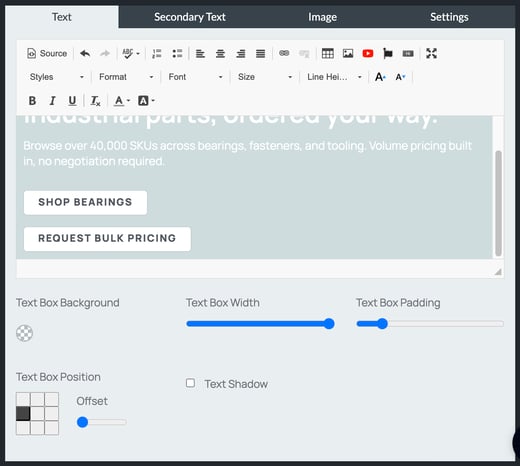
- Click on the **Image** tab and click **Select Image** to choose your background image.
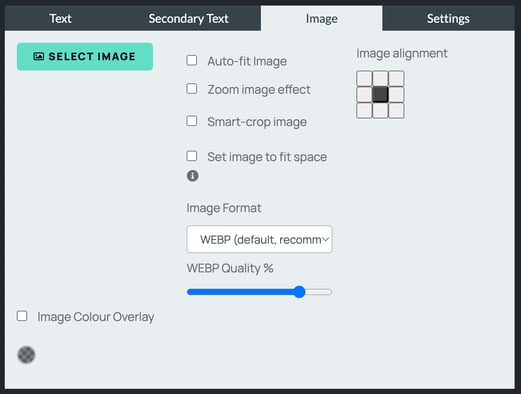
- Turn on Auto-fit Image, Zoom image effect, or Smart-crop image if you'd like the image to adapt to the block automatically, and use **Image alignment** to set which part of the image stays in focus.
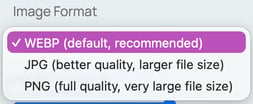
- Images are converted to WEBP format by default, keeping them sharp while loading quickly. If you need a different format, switch it using the Image **Format** dropdown, or adjust WEBP Quality % to balance quality against file size.
- Tick **Image Colour Overlay** if you'd like to darken or tint the image, then use the colour picker to choose your overlay colour and adjust its opacity.
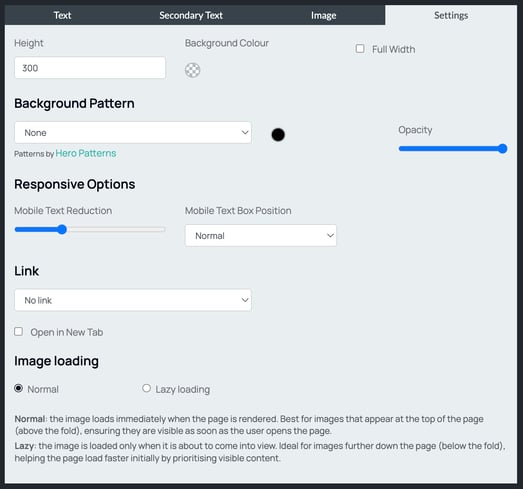
- Click on the **Settings** tab and set your **Height** in pixels. Keep this the same across every slide so they display uniformly once the carousel is rotating.
- Tick **Full Width** if you'd like the block to stretch across the entire page.
### How do I carry my settings across slides?
Here's a useful shortcut. While you're still working on your page, before publishing, BlockLab will carry your most recent Text & Image settings over to any new Text & Image block you add. Add your second, and any further, Text & Image blocks before you publish, and they'll pick up the same image settings, height, and styling as your first slide automatically, so you only need to swap out the image and text.
Once you publish the page, this stops working, and any new Text & Image block added afterwards will start blank.
### How do I add the Dynamic Carousel?
- Add a **Dynamic Carousel** block to your page.
- Under **Carousel Settings**, set how many seconds you'd like between each slide.
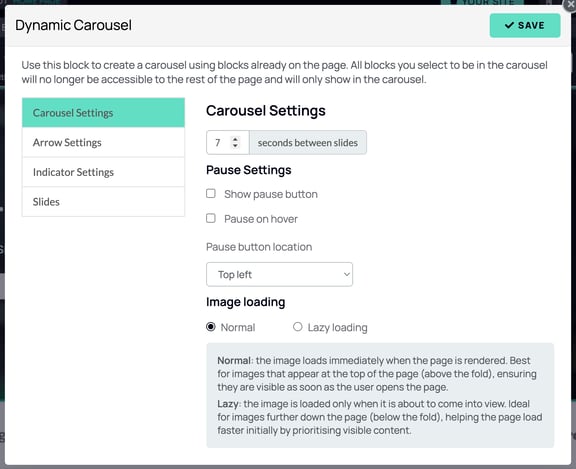
- Under **Pause Settings**, tick **Show pause button** if you'd like customers to be able to pause the rotation, and **Pause on hover** if you'd like it to pause automatically when a customer hovers over it. Choose where the pause button sits using **Pause button location**.
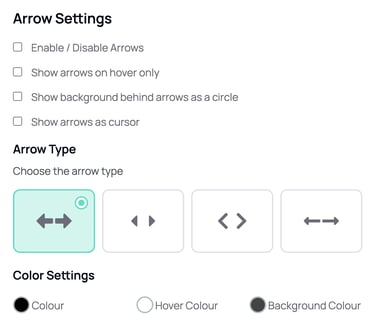
- Click on **Arrow Settings** to turn arrows on or off, choose whether they only show on hover, add a circular background behind them, or display them as the cursor. Pick your preferred **Arrow Type** and set your Colour, Hover Colour, and Background Colour.
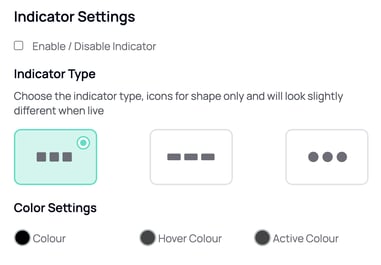
- Click on **Indicator Settings** to turn the dot indicators on or off, choose your Indicator Type, and set your Colour, Hover Colour, and Active Colour.
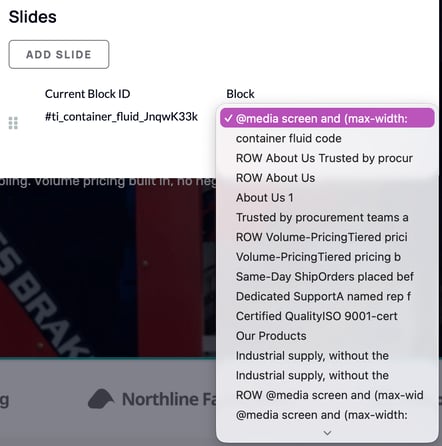
- Click on **Slides**, then click **Add Slide** for each block you'd like to include.
- Use the **Block** dropdownto choose which block should appear in that slide.
The Block dropdown lists every block on your page in the order they appear, from top to bottom. Blocks with clear text, like headings, are usually easy to spot. Text & Image blocks can be harder to identify, since they sometimes display as code, starting with something like `@media screen and...`, rather than their actual content. If this happens, use the block's position in the list to work out which one you need, based on where it sits on the page.
- Click Save.
### How do I make my carousel stretch edge to edge?
- Select the row containing your Dynamic Carousel block.
- Click on the **Row** tab.

- Click **No Gutter**.
Publish your page once you're happy, to see your carousel live.
### Tips
- Any block you add to a carousel slide will no longer appear elsewhere on the page, so make sure you're happy with your slides before adding the Dynamic Carousel block.
- Keep your slide heights consistent so the carousel doesn't jump between different sizes as it rotates.
- Add your extra Text & Image blocks before publishing if you want them to inherit your existing settings automatically. It saves rebuilding each slide from scratch.
- [Getting started](https://resources.symphonycommerce.io/knowledge-base/getting-started?hsLang=en)
- [Settings](https://resources.symphonycommerce.io/knowledge-base/settings?hsLang=en#main-content)
- [Payment Methods](https://resources.symphonycommerce.io/knowledge-base/settings?hsLang=en#payment-methods)
- [Redirects](https://resources.symphonycommerce.io/knowledge-base/settings?hsLang=en#redirects)
- [Deliveries](https://resources.symphonycommerce.io/knowledge-base/settings?hsLang=en#deliveries)
- [Notifications And Emails](https://resources.symphonycommerce.io/knowledge-base/settings?hsLang=en#notifications-and-emails)
- [Users](https://resources.symphonycommerce.io/knowledge-base/settings?hsLang=en#users)
- [Site Settings](https://resources.symphonycommerce.io/knowledge-base/settings?hsLang=en#site-settings)
- [Varnish Cache](https://resources.symphonycommerce.io/knowledge-base/settings?hsLang=en#varnish-cache)
- [Tracking, SEO And Javascript](https://resources.symphonycommerce.io/knowledge-base/settings?hsLang=en#tracking-seo-and-javascript)
- [Reports](https://resources.symphonycommerce.io/knowledge-base/reports?hsLang=en)
- [BlockLab](https://resources.symphonycommerce.io/knowledge-base/blocklab?hsLang=en)
- [Content](https://resources.symphonycommerce.io/knowledge-base/content?hsLang=en#main-content)
- [Pages](https://resources.symphonycommerce.io/knowledge-base/content?hsLang=en#pages)
- [Menus](https://resources.symphonycommerce.io/knowledge-base/content?hsLang=en#menus)
- [Strings](https://resources.symphonycommerce.io/knowledge-base/content?hsLang=en#strings)
- [Blogs / News](https://resources.symphonycommerce.io/knowledge-base/content?hsLang=en#blogs-news)
- [Snippets](https://resources.symphonycommerce.io/knowledge-base/content?hsLang=en#snippets)
- [Forms](https://resources.symphonycommerce.io/knowledge-base/content?hsLang=en#forms)
- [Downloads](https://resources.symphonycommerce.io/knowledge-base/content?hsLang=en#downloads)
- [Products](https://resources.symphonycommerce.io/knowledge-base/products?hsLang=en#main-content)
- [Groups](https://resources.symphonycommerce.io/knowledge-base/products?hsLang=en#groups)
- [Categories](https://resources.symphonycommerce.io/knowledge-base/products?hsLang=en#categories)
- [Brands](https://resources.symphonycommerce.io/knowledge-base/products?hsLang=en#brands)
- [Reviews](https://resources.symphonycommerce.io/knowledge-base/products?hsLang=en#reviews)
- [Products](https://resources.symphonycommerce.io/knowledge-base/products?hsLang=en#products)
- [Stock](https://resources.symphonycommerce.io/knowledge-base/products?hsLang=en#stock)
- [Catalogues](https://resources.symphonycommerce.io/knowledge-base/products?hsLang=en#catalogues)
- [Customisations](https://resources.symphonycommerce.io/knowledge-base/products?hsLang=en#customisations)
- [Discounts](https://resources.symphonycommerce.io/knowledge-base/discounts?hsLang=en#main-content)
- [Discounts Fortis](https://resources.symphonycommerce.io/knowledge-base/discounts?hsLang=en#discounts-fortis)
- [Plugins](https://resources.symphonycommerce.io/knowledge-base/plugins?hsLang=en#main-content)
- [Google Shopping Feed](https://resources.symphonycommerce.io/knowledge-base/plugins?hsLang=en#google-shopping-feed)
- [One-Time Passcode](https://resources.symphonycommerce.io/knowledge-base/plugins?hsLang=en#one-time-passcode)
- [Out Of Stock Notify](https://resources.symphonycommerce.io/knowledge-base/plugins?hsLang=en#out-of-stock-notify)
- [Auto Tags](https://resources.symphonycommerce.io/knowledge-base/plugins?hsLang=en#auto-tags)
- [Compare Products](https://resources.symphonycommerce.io/knowledge-base/plugins?hsLang=en#compare-products)
- [Business Customers](https://resources.symphonycommerce.io/knowledge-base/plugins?hsLang=en#business-customers)
- [Stickers](https://resources.symphonycommerce.io/knowledge-base/plugins?hsLang=en#stickers)
- [Custom Fields](https://resources.symphonycommerce.io/knowledge-base/plugins?hsLang=en#custom-fields)
- [B2B Sales](https://resources.symphonycommerce.io/knowledge-base/plugins?hsLang=en#b2b-sales)
- [Auto Checkout](https://resources.symphonycommerce.io/knowledge-base/plugins?hsLang=en#auto-checkout)
- [Tempus](https://resources.symphonycommerce.io/knowledge-base/plugins?hsLang=en#tempus)
- [Orders](https://resources.symphonycommerce.io/knowledge-base/orders?hsLang=en#main-content)
- [Returns](https://resources.symphonycommerce.io/knowledge-base/orders?hsLang=en#returns)
- [Customers](https://resources.symphonycommerce.io/knowledge-base/customers?hsLang=en)
- [My Account](https://resources.symphonycommerce.io/knowledge-base/my-account?hsLang=en)
- [Marketing](https://resources.symphonycommerce.io/knowledge-base/marketing?hsLang=en#main-content)
- [Merchandising](https://resources.symphonycommerce.io/knowledge-base/marketing?hsLang=en#merchandising)
- [Email](https://resources.symphonycommerce.io/knowledge-base/marketing?hsLang=en#email)
[](http://www.symphonycommerce.io)
1 St Peter's Square
Stockport, SK1 1NZ
[support@symphonycommerce.io](mailto:support@symphonycommerce.io)
[(+44)161 399 7467](tel:01613997467)
Copyright © 2026, Symphony Commerce