
What is the Mega Menu and where do I find it?
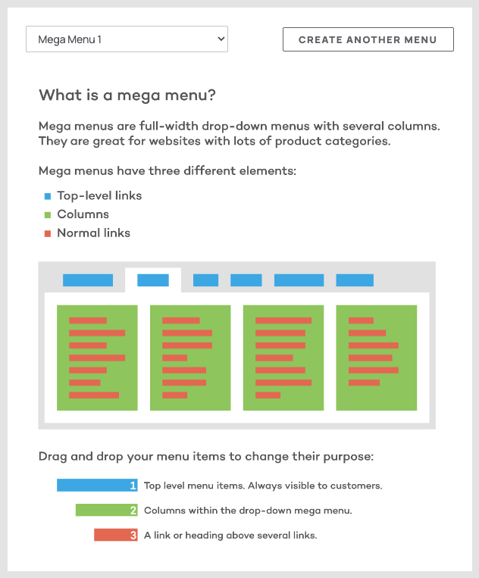
The Mega Menu is a navigational feature that lets you build structured header menus with columns, section titles, and nested links. To access it, navigate to Content > Menus > Mega Menu.
Creating a Mega Menu
Follow these steps to build a Mega Menu:
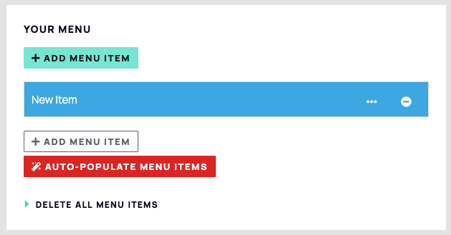
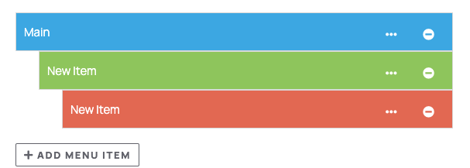
- Click Add Menu Item. This automatically creates a blue top-level tab.
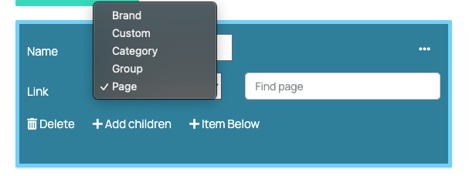
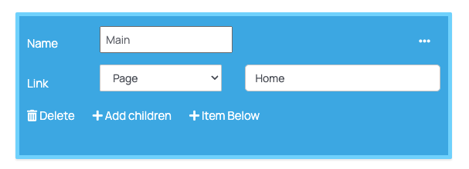
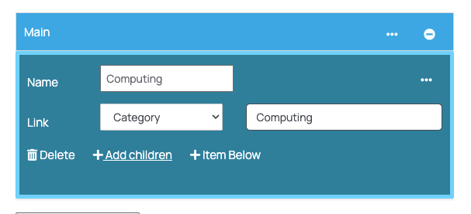
- Click the three dots on the blue box to open its editing area and set the link type (Page, Category, or Custom Link).
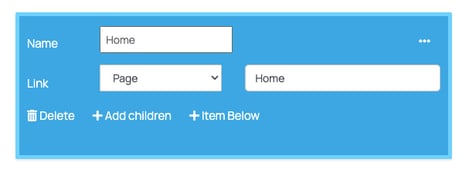
- Enter a display name in the link name field — this can differ from the destination (for example, you can label the tab "Main" while it links to the Home page).
- To add a column or sub-links, click Add Menu Item again and drag the new item to the right until it turns green (column) or red (link).
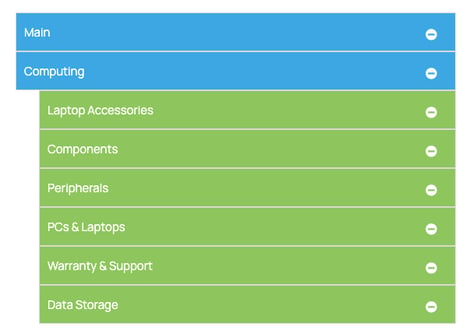
- To add sub-categories automatically, select Add Children on a Category link. To add them manually, select Item Below and drag links into position.


Columns and Section Titles
To display links grouped under bold section titles, you need to combine Blue (top-level), Green (column), and Red (link) items in the correct order. Follow these steps:
- Create a Blue top-level item.
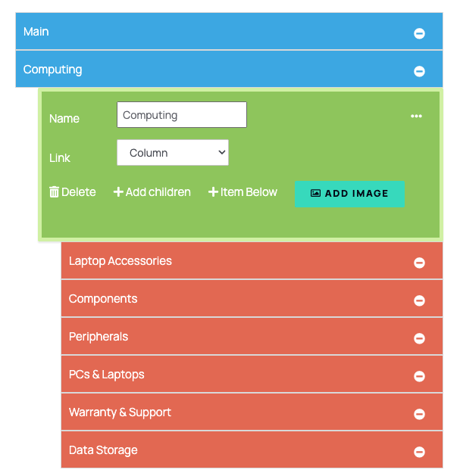
- Add a Green item below it (this becomes your column container).
- Add Red link items beneath the Green item. Once at least one Red link is present, an option appears on the Green item — select Column to enable column display.
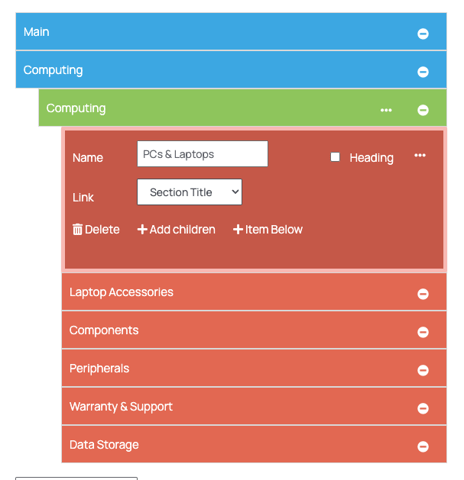
- To add a section title, add a Red item below the Green item, open its options dropdown (the same dropdown used to set Column), and select Section Title.
- Enter the title text in the same field where you would normally enter a link name.
- To add another column, repeat from step 2 (Green, then Red links). To add a new top-level link, repeat from step 1 (Blue, Green, then Red).
Don't forget to save your changes by clicking the Save button located at the top right corner.