
How does the Popup Builder work?
The Popup Builder is a self contained editor within BlockLab. You pick a starting point, then use three areas to shape your popup: Builder for the content and colours, Layout for sizing and alignment, and Settings for where and when it displays. A live preview sits alongside, so you can see each change as you make it.
How do I create a popup?
- Open BlockLab in the admin system.
- On the right side of the page, click Open Pop-up Builder.
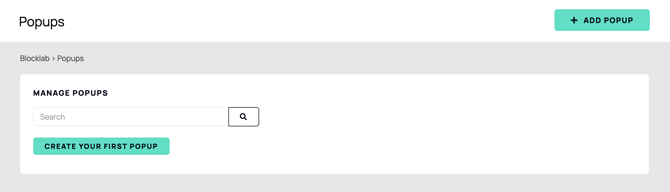
- Click Add Popup in the top right. If you haven't created a popup yet, you'll see a Create Your First Popup button instead. Either one will work.
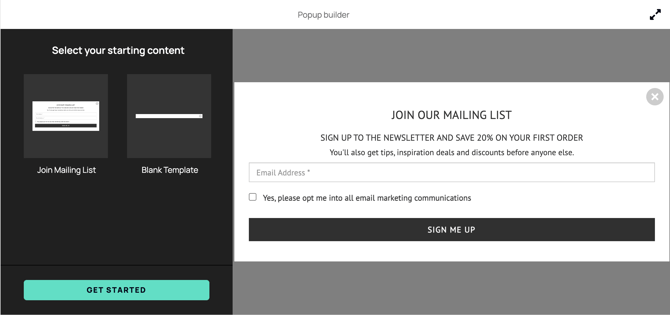
- The Popup Builder window will open. Choose your starting content, either the Join Mailing List template or a Blank Template, then click Get Started.
- Your popup is now ready to style, using the Builder, Layout, and Settings options on the left.
- When you're happy, click Save in the top right.
- Go back to the Popups page in BlockLab and switch on the Enabled toggle next to your popup's name.
Your popup won’t display on your website until it’s enabled, so don’t skip this step. You can switch it off again from the same place at any time.
Builder
Builder is where your content sits, and where you control the overall look of the popup itself.
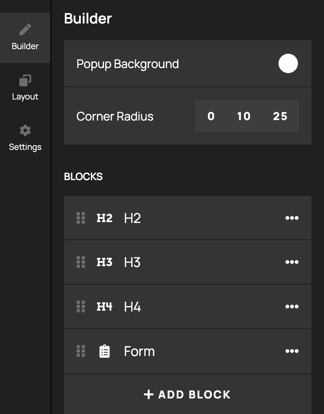
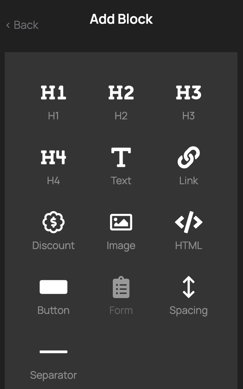
Use Popup Background to change the background colour, and Corner Radius to choose how rounded the corners are. Your content is listed below as blocks. The Join Mailing List template, for example, includes headings and a form. To add more content, click Add Block and choose from H1, H2, H3, H4, Text, Link, Discount, Image, HTML, Button, Form, Spacing, or Separator.
Layout
Layout controls the main styling of your popup.
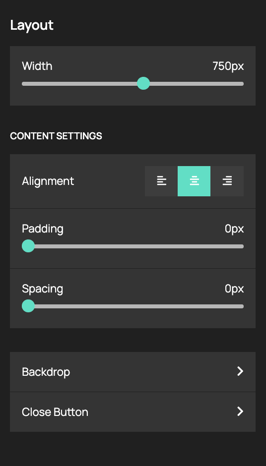
Use Width to set how wide the popup displays, and Alignment to position your content to the left, centre, or right. Padding and Spacing let you adjust the room around and between your content. Backdrop and Close Button open further options. Under Backdrop, use the toggle to switch the backdrop on or off and choose its Background colour. Under Close Button, use the toggle to switch the button on or off, then set its Text Colour and Background Colour.
Settings
Settings is where you name your popup and decide where and when it appears.
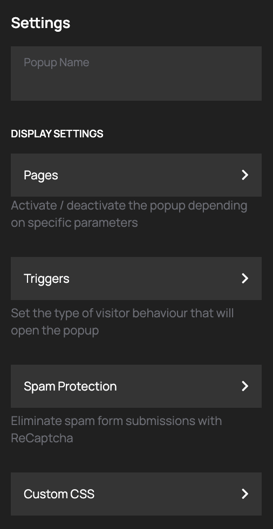
Start by giving your popup a Popup Name, so it's easy to find later. Then, under Display Settings:
Pages lets you activate or deactivate the popup depending on specific parameters, so it only shows where you want it to. Choose to display it on All pages, or select Some pages and use rules to decide where it will show.
Triggers sets the type of visitor behaviour that will open the popup. Turn on On Page Load to open the popup once the page has loaded, or On Exit Intent to open it when a customer looks set to leave the page.
Spam Protection helps eliminate spam form submissions using Google reCAPTCHA. You'll need to install the reCAPTCHA plugin first, then switch on Enable. It works invisibly, so customers don't need to tick a checkbox. As Google requires, the legal information will be placed in your widget footer once it's enabled.
Custom CSS lets you add your own styling for anything the standard options don't cover. As long as your CSS is valid, your changes should appear straight away.
Tips
-
Give every popup a clear name, particularly if you plan to create several. It makes them much easier to find when you return to Manage Popups.
-
If your popup includes a form, such as the Join Mailing List template, consider installing the reCAPTCHA plugin and turning on Spam Protection to keep unwanted submissions out.
-
Be deliberate with Pages and Triggers. A popup that appears on every page, or opens as soon as a page loads, can get in the way of a customer's journey. On Exit Intent is a gentler option, since it only appears when a customer looks set to leave.