
How do placements work?
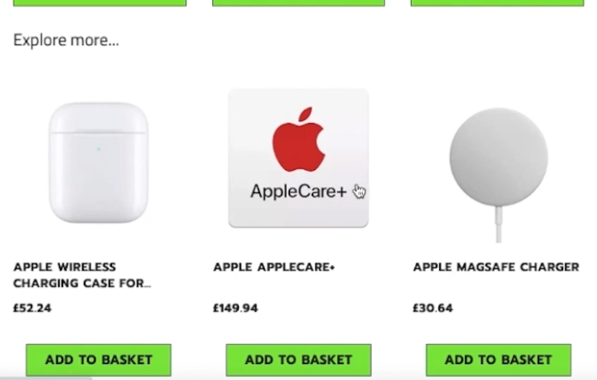
When customers add products to their basket or proceed to checkout, they will see a section recommending products of your choice.
Placements can recommend products in two ways: automatically, based on shared product tags, or manually, by linking specific products yourself.
This feature is highly flexible and always respects your preferences. It allows you to choose exactly what your customers see, enhancing your cross-selling strategy on your website.
How do I implement placements?
1. Within the Admin System, navigate to Merchandising under Marketing.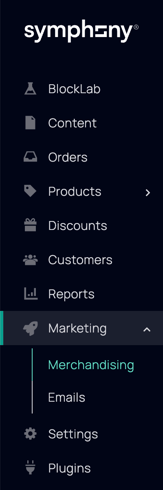
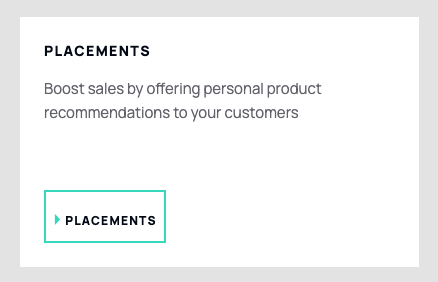
3. Click on Add within the Locations panel.
4. Select the location you want the placement to show on your website, for example Checkout, Basket Pop-up, or Product Page, and choose the specific position within that location.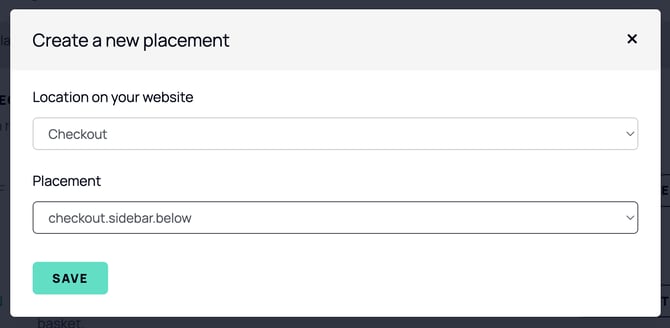
5. Select the location you want the placement to show on your website.
6. Click Save and change the Heading (optional).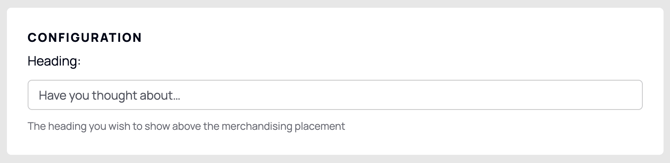
7. Make sure your placement is Active and Save.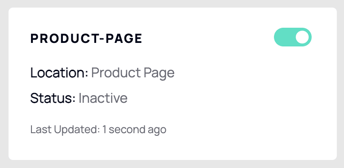
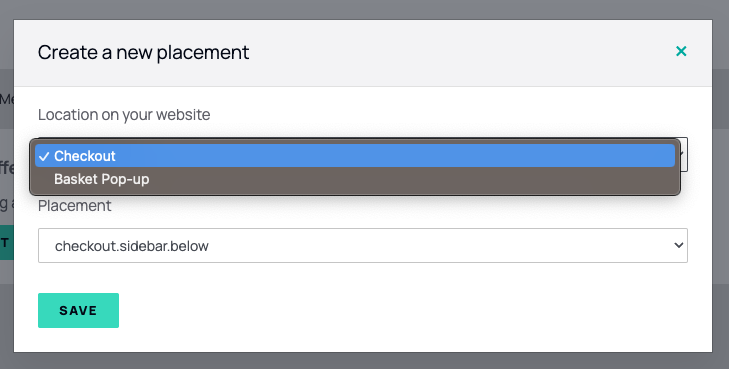
If you've selected Product Page as your location, there's one more step. Product Page placements don't appear automatically, you need to add them to your layout:
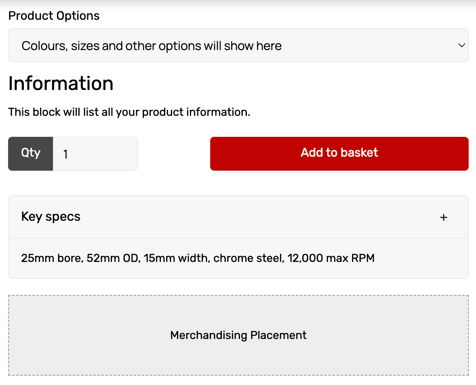
8. Head to BlockLab and open up the Block dropdown. Under Product Blocks, place the Merchandising Placement block onto your Product Page layout and move it into the position you'd like it to appear.
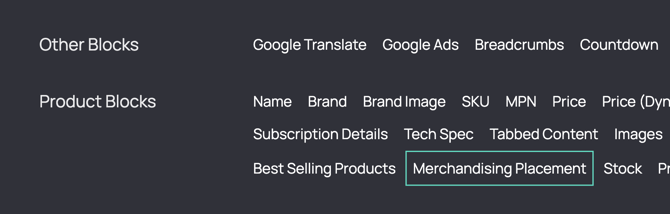
9. Publish your changes.
How do I control what recommended products my customers can see?
1. Head to the Placements area. Here you'll find your Product Recommendation Strategy. This controls how Placements decides which products to recommend. Linked Products and Tag Based can be switched on independently or together, so choose whichever suits how hands-on you want to be.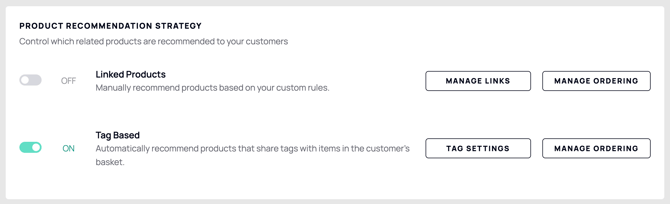
Tag Based
Automatically recommends products that share tags with items in the customer's basket.
1. Toggle Tag Based on.

2. Click Tag Settings. Here you'll find a list of all the tags applied to your products.
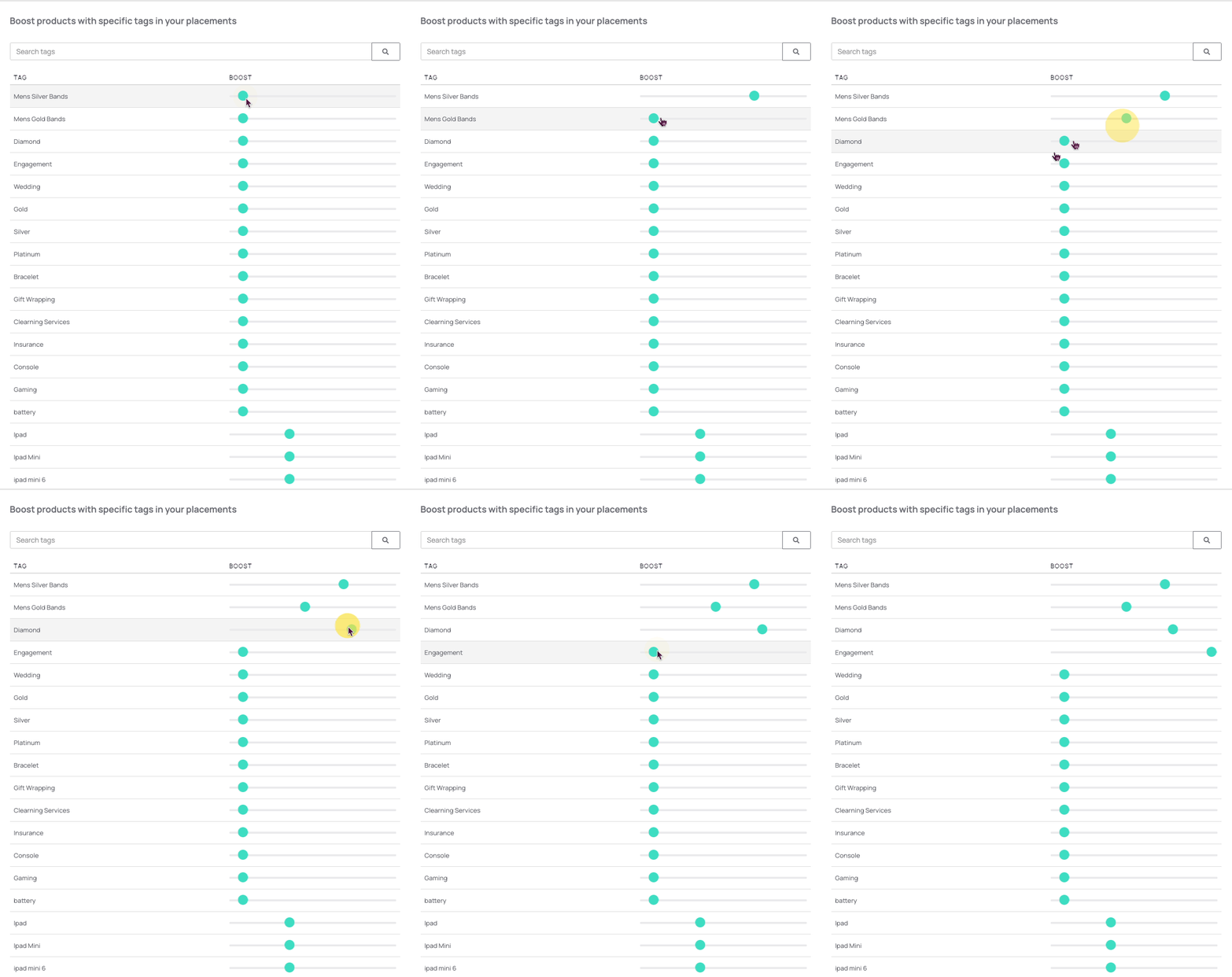
4. Exclude any tags you don't want influencing recommendations.
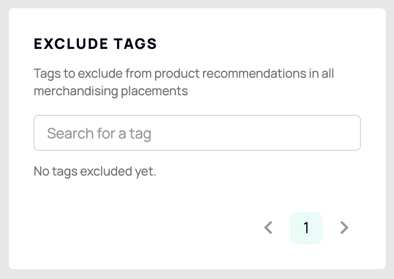
5. Click Save at the top right.
* The more tags your products have in common, the more likely they are to be recommended together.
Linked Products
Manually recommend specific products, based on your own rules, rather than tags.
1. Toggle Linked Products on.

2. Click Manage Links.
3. Then click New and select the specific products you want to appear as recommendations.
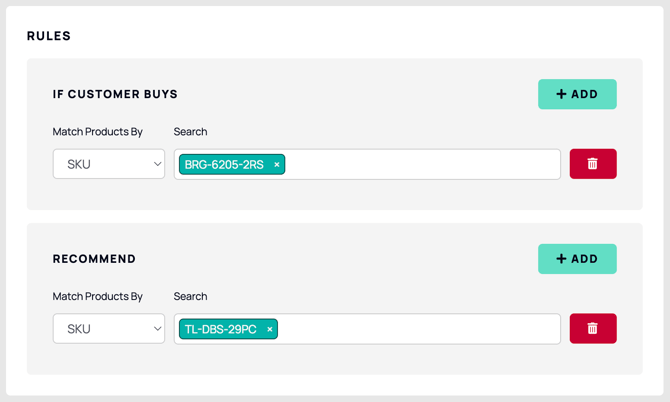
Adding multiple products to the same row means the rule applies if the customer buys any of them. Adding products across separate rows (using + Add) means the customer must buy all of them together for the recommendation to trigger.
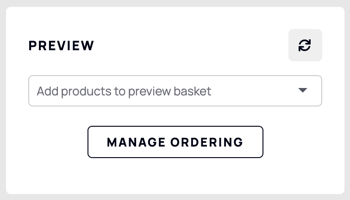
Whichever strategy (or combination) you use, click Manage Ordering to control the order recommended products appear in.
Tips
1. Use Tag Based if you want low-maintenance, automatic recommendations that scale as your catalogue grows.
2. Use Linked Products when you want full manual control over specific product pairings - for example, recommending an accessory alongside a particular item.
3. Running both? Linked Products always takes priority, so use it for your must-show pairings and let Tag Based fill in the gaps.
4. Remember to add the Merchandising Placement block in BlockLab for any placement on the Product Page - without it, the placement won't display even if it's Active.
For a more in-depth guide, feel free to watch the accompanying video tutorial for step-by-step instructions.