
Order Approvals
Order Approvals allows you to review an incoming order and quickly assess whether it is one you want to fulfil, before accepting or rejecting the order in a click.
If you would like an external user to approve/reject your orders without having access to your full website admin system, this can be handled too - entirely by email.
Best practice
Order Approvals is best used when your payments are set to arrive in an 'Authorised' state, meaning no money has yet been taken from the customer.
If your payments are set capture immediately upon the order being placed, please note you will have to refund any rejected orders individually. It is for this reason we strongly recommend setting your payment capture settings to 'Authorised'. This is not the default setting, so it is recommended that you visit Settings > Payment Methods and then your relevant payment provider instance to set correctly.
Note: Order Approvals is only available on select payment methods. Contact Support or check your Payment Methods settings to confirm which integrations support Order Approvals in your account.
How to activate Order Approvals
To activate Order Approvals, follow these steps:
- Go to Settings.

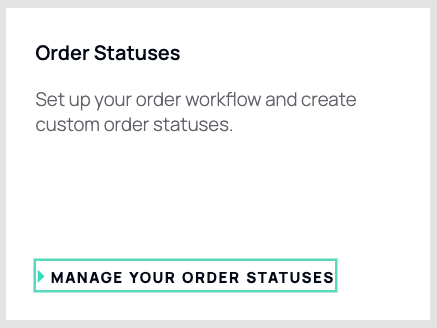

- Navigate to Store > Orders.
- Click Order Approvals.

- Tick the checkbox to enable Order Approvals.

- Set the order status that a Pending order will move to when approved, and the status it will move to when rejected.
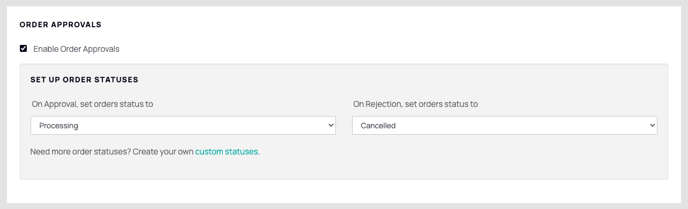

- Click Save.
Accepting or Rejecting Orders
To accept or reject an order that has been placed on your site, navigate to your orders index screen.
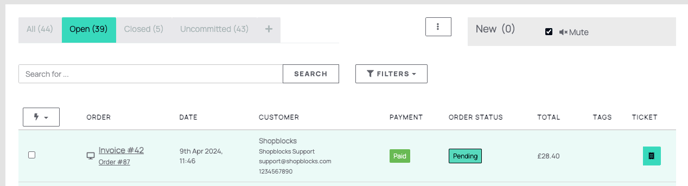
On the new order, click the Ticket icon.

On the ticket view you will now be able to see a summary of the order, where you can choose to Approve or Reject the order.
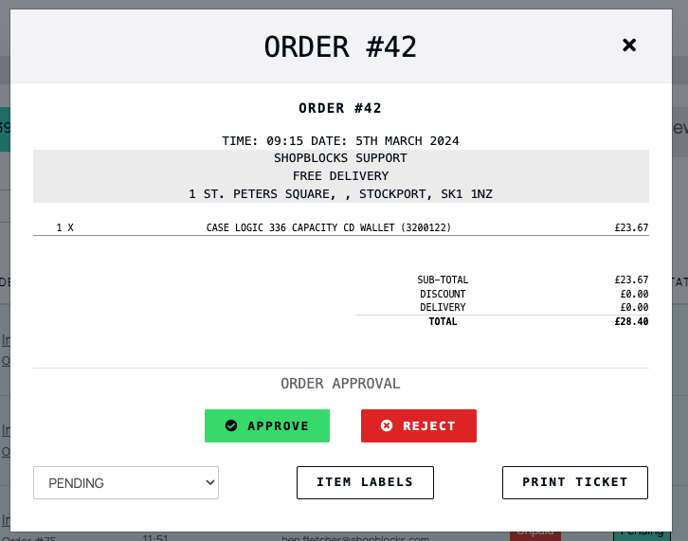
If you Approve, the order will be moved to your chosen status, and the payment will be taken.
If you Reject, the order will be cancelled and the customer will be notified by email.
Please note, if your payment method capture settings are set to immediate, if you reject an order you will have to refund the customer manually.
We strongly advise that you have your payment capture settings set to "Immediate capture = OFF" when using this feature. This is not the default setting, so it is recommended that you visit Settings > Payment Methods and then your Symphony Pay or Global Payments instance to set correctly.

Third Party Approvals
If you would like an external user to approve/reject your orders without having access to your full website admin system, this can be handled entirely by email.
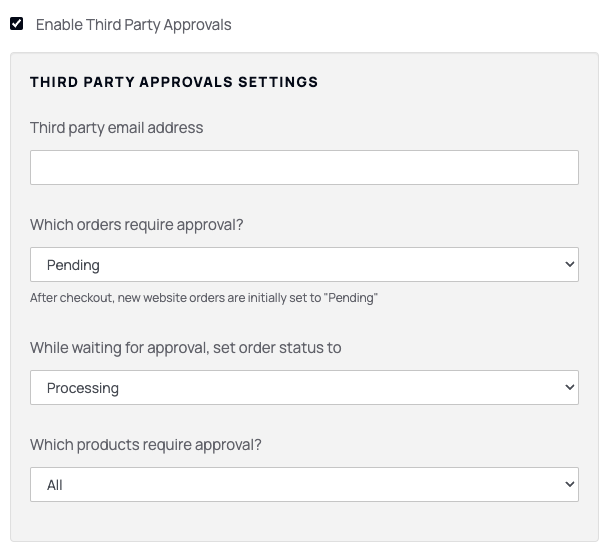
How Third Party Approvals work
- Activate third party approvals then enter an email address for order approvals.
- The email address will receive a full copy of the order details if approval is required.
- In the email the recipient will see secure links to approve/reject orders.
- Clicking the links will enable the third party to update your orders and trigger the order status changes as specified in your settings.